مدونة WeddingAI.video
Make Your First AI Wedding Video in 5 Minutes: A Complete Beginner's Guide
Learn how to create your first AI wedding video in just 5 minutes. No editing skills needed. Step-by-step guide with tips for stunning results every time.
10 دقائق قراءة
You've got the footage. Maybe it's a folder full of smartphone clips from your ceremony. Maybe it's professional footage your photographer shot alongside the photos. Maybe it's a chaotic mix of everything your guests captured from every angle imaginable.
And now you're staring at that folder thinking: *How do I turn this into something I'd actually want to watch?*
Good news: you don't need editing experience, expensive software, or a film school degree. You need about five minutes and the right AI tool.
This guide walks you through every step of creating your first AI wedding video — from gathering your footage to sharing the finished product with the world. By the end, you'll have a polished, cinematic wedding video that looks like you hired a professional editor.
Let's make something beautiful.
Before You Start: What You'll Need
Your Footage Collection
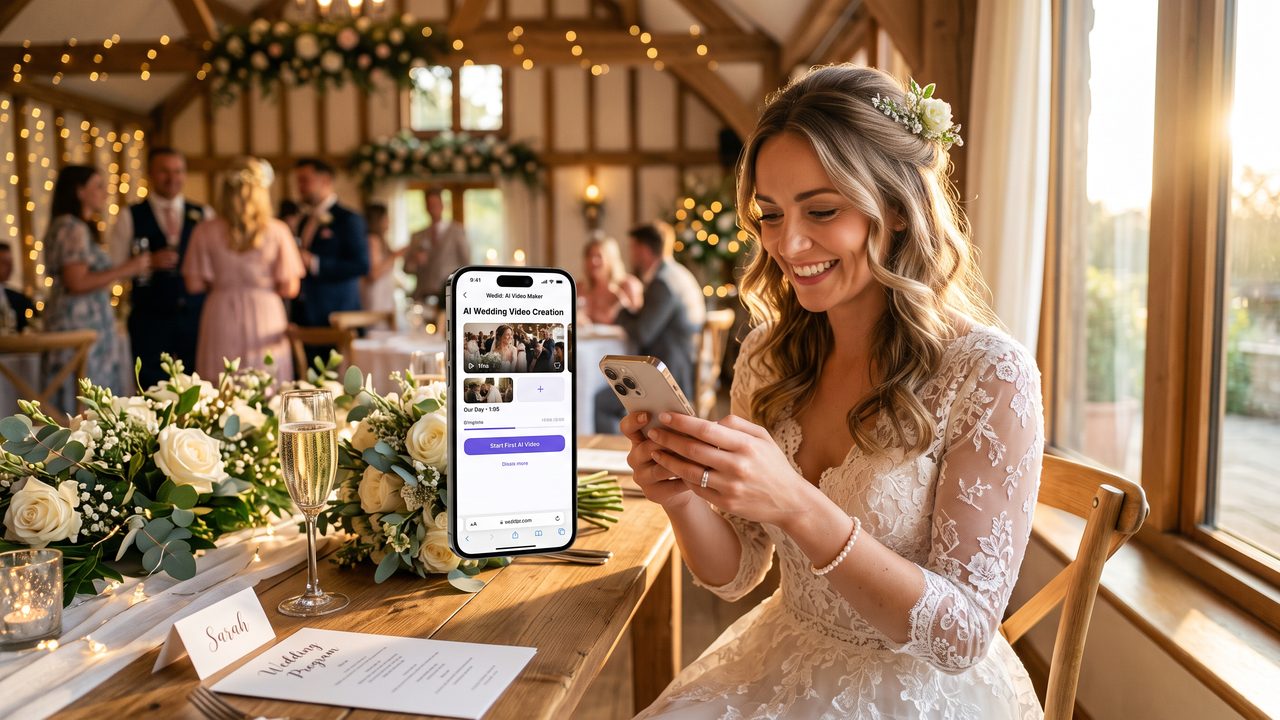
Gather all your video clips into one folder on your computer or phone. Don't worry about organizing them yet — AI will handle that. But do make sure you have:
- **At least 5-10 video clips** (more is better, but quality matters more than quantity)
- **Clips from different moments** — preparation, ceremony, reception, candid shots
- **Reasonable video quality** — most modern smartphones shoot more than good enough footage
- **Total footage of 10-60 minutes** — AI works best with enough material to select the best moments
Optional but Recommended
- **A song or music preference** — most AI tools have built-in libraries, but your own choice adds a personal touch
- **A few photos** — many AI tools can weave still photos into the video for a richer story
- **A list of "must-include" moments** — if there's a specific speech, dance, or moment you want featured, note it
That's it. No software to install. No tutorials to watch. No technical prerequisites.
Step 1: Choose Your AI Video Tool
What to Look For
Not all AI video tools are created equal. For wedding videos specifically, look for:

- **Wedding-specific templates and styles** — generic video editors won't understand the emotional arc of a wedding
- **Automatic scene detection** — the tool should identify key moments without you tagging them manually
- **Music synchronization** — cuts and transitions should match the beat and mood of your chosen music
- **Multiple output formats** — you'll want different versions for social media, family sharing, and keepsake viewing
- **Easy upload process** — drag-and-drop, no complicated import workflows
WeddingAI Video checks all these boxes and is specifically designed for wedding footage. It's what we'll use in this walkthrough, though the general steps apply to most quality AI video platforms.
Understanding Your Options
Most AI wedding video platforms offer several service tiers:
- **Highlight reel** (2-4 minutes) — the best moments, set to music, perfect for sharing
- **Wedding trailer** (1-2 minutes) — cinematic and dramatic, like a movie trailer for your day
- **Full-length edit** (15-60+ minutes) — comprehensive coverage of the entire event
- **Specialty formats** — slow-motion edits, vintage styles, cartoon versions
For your first video, start with a highlight reel. It's the most forgiving format, the quickest to produce, and the most satisfying to share.
Step 2: Upload Your Footage
The Upload Process
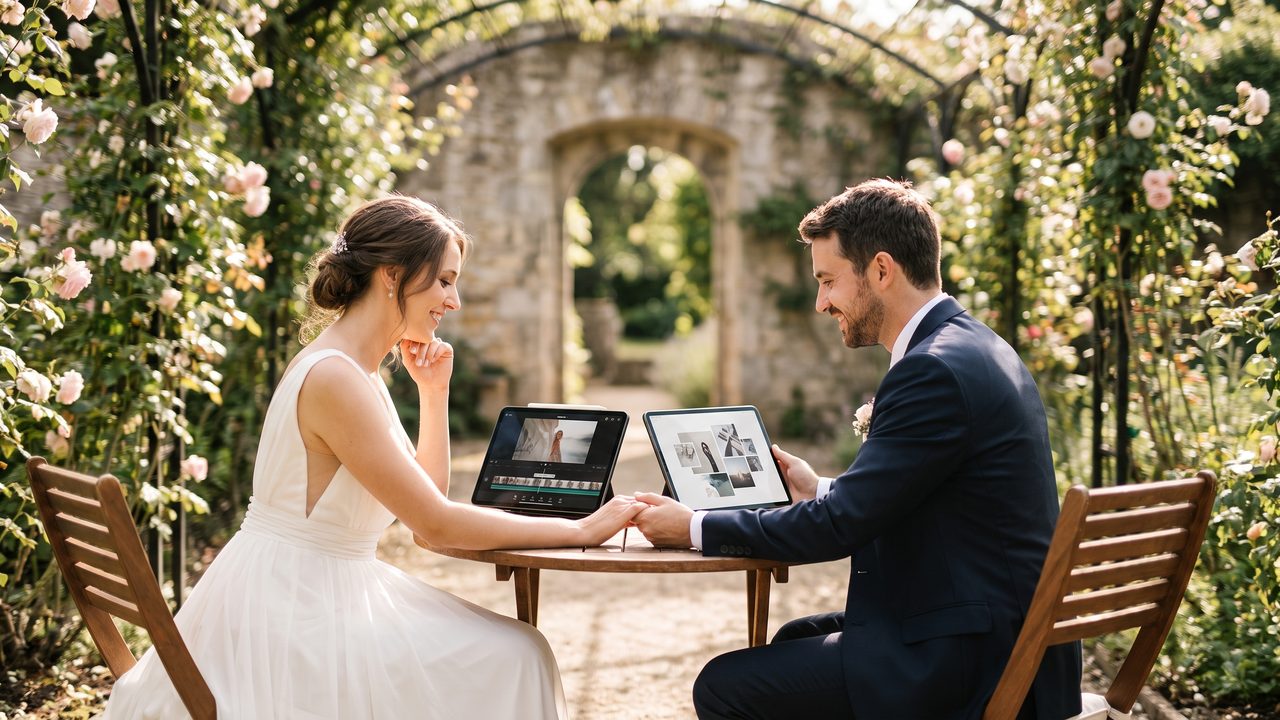
This is the easiest part. Navigate to the upload section of your chosen platform and:
- **Select your clips** — drag and drop them into the upload area, or click to browse your files
- **Wait for upload** — depending on your internet speed and the amount of footage, this takes 1-5 minutes
- **Let the AI analyze** — once uploaded, the AI scans your footage to detect scenes, faces, emotions, and key moments
Upload Tips for Best Results
**Do upload in the highest quality available.** If your phone shoots in 4K, upload the 4K files. AI can always downscale, but it can't add detail that isn't there.
**Don't worry about trimming clips.** Upload the full clips, including the messy parts. The AI will identify the best moments and skip the rest.
**Do include variety.** A mix of wide shots, close-ups, candid moments, and planned shots gives the AI more to work with and produces a more dynamic final video.
**Don't upload duplicate clips.** If three guests filmed the same moment from similar angles, pick the best quality version rather than uploading all three.
File Formats and Compatibility
Most platforms accept common video formats:
- MP4 (most common, universally supported)
- MOV (standard for iPhone footage)
- AVI, MKV, and others are typically supported
If you have footage in an unusual format, most AI tools will attempt to convert it automatically. If that fails, free tools like Handbrake can convert any format to MP4 before uploading.
Step 3: Choose Your Style and Settings
Selecting a Video Style
This is where the magic begins. Most AI wedding video platforms offer preset styles that dramatically change the look and feel of your final video:
**Cinematic** — Wide color grading, dramatic transitions, film-like pacing. Think movie trailer vibes.
**Romantic** — Warm tones, soft transitions, gentle pacing. Perfect for intimate moments and emotional storytelling.
**Vintage** — Film grain, muted colors, nostalgic feel. Great for couples who love that analog aesthetic. Explore this further with vintage restoration services.
**Energetic** — Fast cuts, bright colors, upbeat pacing. Ideal for reception highlights and party footage.
**Minimalist** — Clean, modern, understated. Lets the footage speak for itself without flashy effects.
**Fun & Playful** — Whimsical transitions, creative effects, lighthearted feel. Perfect for couples who don't take themselves too seriously.
Choose the style that best matches your personality as a couple. You can always create additional versions in different styles later — that's one of the superpowers of AI editing.
Music Selection
Music makes or breaks a wedding video. Most platforms offer:
- **Built-in licensed music libraries** — curated wedding-appropriate tracks organized by mood and tempo
- **Custom upload** — use your own song (first dance song, "your song," etc.)
- **AI music matching** — some tools analyze your footage's mood and suggest matching tracks
**Pro tip:** Choose your music before finalizing other settings. The AI will sync cuts, transitions, and pacing to the music's rhythm, so the song fundamentally shapes the video's feel.
Duration and Format Settings
Set your desired output:
- **Duration** — highlight reels typically run 2-5 minutes. For a first video, aim for 3 minutes.
- **Aspect ratio** — 16:9 for standard viewing, 9:16 for Instagram/TikTok Stories, 1:1 for social feeds
- **Resolution** — 1080p is standard; 4K if you want the highest quality and have the storage
Step 4: Let the AI Work Its Magic
What Happens Behind the Scenes
Once you've configured your settings, the AI gets to work. Here's what's happening during those processing minutes:
- **Scene analysis** — The AI identifies every distinct scene in your footage: preparation, ceremony, reception, speeches, dances, candid moments
- **Moment scoring** — Each moment is scored for emotional intensity, visual quality, and narrative importance
- **Story construction** — The AI assembles a narrative arc: introduction, building tension, emotional peaks, resolution
- **Music synchronization** — Cuts, transitions, and pacing are matched to the music's tempo and mood
- **Color grading** — Footage from different cameras and lighting conditions is unified into a cohesive visual style
- **Audio balancing** — Background music, ambient sound, and speech audio are mixed for clarity and emotion
- **Final rendering** — The complete video is rendered in your chosen format and resolution
How Long Does It Take?
Processing times vary by platform and video length:
- **Highlight reel (2-5 min):** 3-15 minutes
- **Wedding trailer (1-2 min):** 2-10 minutes
- **Full-length edit (30+ min):** 15-45 minutes
Go grab a coffee. The AI is doing in minutes what would take a human editor hours or days.
Step 5: Review and Refine
Watching Your First Draft
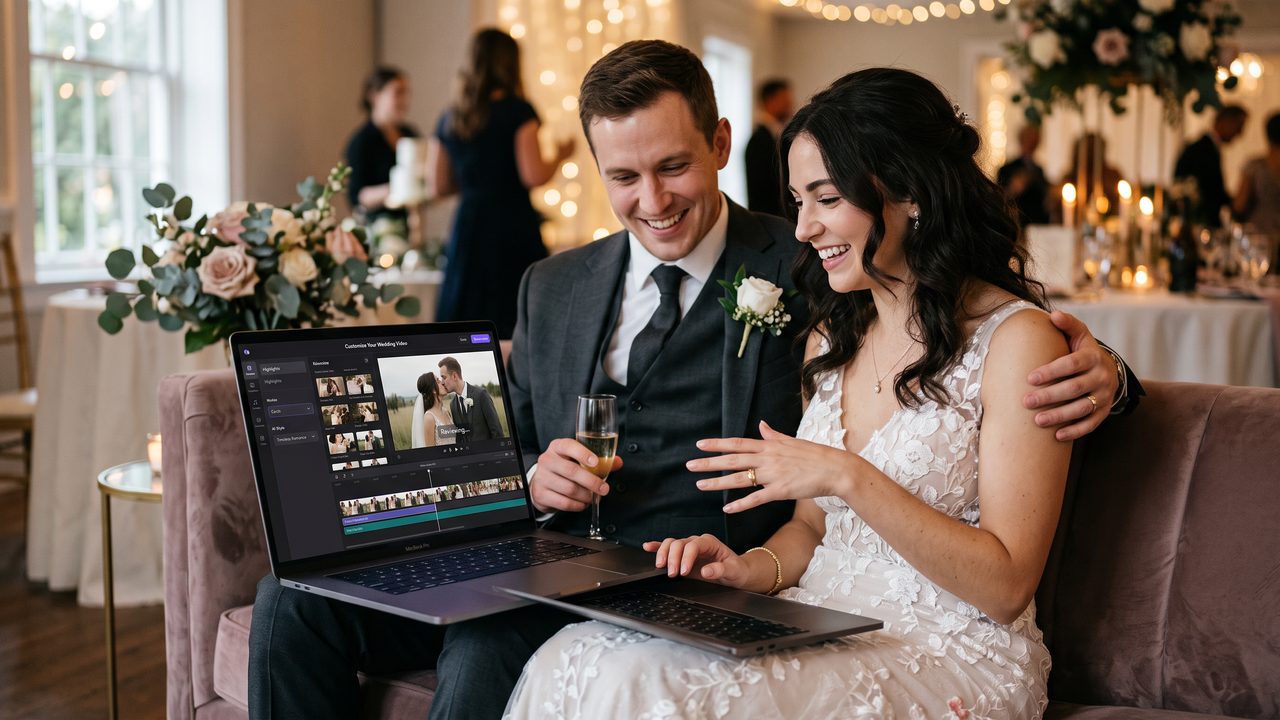
This is the emotional moment. Hit play and watch your wedding day unfold as a cinematic story.
Most couples report strong emotional reactions to their first AI-generated video. There's something powerful about seeing your raw, chaotic footage transformed into a coherent, beautiful narrative.
Watch it through once without making notes. Just experience it.
Common Adjustments
After your first viewing, you might want to tweak a few things:
**"I want more of [specific moment]"** — Most tools let you tag moments for inclusion or boost their priority.
**"The pacing feels too fast/slow"** — Adjust the tempo setting and regenerate.
**"I want to swap the song"** — Change the music and the AI will re-sync everything.
**"Can I add text or titles?"** — Most platforms support custom titles, date overlays, and credits.
**"I want to try a different style"** — Switch the style preset and regenerate. This is like getting a completely different editor's interpretation of your footage.
The Iteration Loop
Here's the beautiful thing about AI video tools: iteration is free and fast. Unlike traditional editing where revisions cost money and time, you can:
- Try five different songs in ten minutes
- Compare three different styles side by side
- Create separate versions for different audiences (family-friendly, friends-only, social media)
- Experiment with specialty effects like slow-motion highlights or cartoon-style segments
Don't settle for your first draft unless you love it. Iterate until it's perfect.
Step 6: Enhance and Personalize
Taking It to the Next Level
Once you have a solid base video, consider these enhancements:
**Add a family message** — If loved ones couldn't attend, use family message integration to weave their recorded blessings into the video.
**Include your pets** — Your furry family members deserve screen time too. Pet wedding features can highlight their adorable moments.
**Create multilingual versions** — Got family who speak different languages? Multilingual subtitles make the video accessible to everyone.
**Generate a meme version** — For your friend group, a meme-style edit of the funniest moments becomes instant-shareable content.
**Make a family tribute** — Honor absent loved ones with a family tribute segment that adds emotional depth to the video.
Step 7: Export and Share
Exporting Your Video
When you're happy with the result, export in the appropriate format:
- **For keepsake/archival:** Export in the highest resolution available (4K if possible)
- **For social media:** Use the platform-optimized export (most tools offer Instagram, TikTok, YouTube presets)
- **For family sharing:** Standard 1080p MP4 works universally across devices and messaging apps
- **For email:** Some tools offer compressed versions that maintain quality while reducing file size
Sharing Strategies
**Immediate sharing (day of / day after):**
- Post the trailer or highlight reel to social media
- Send to family group chats
- Share at post-wedding brunches or gatherings
**Short-term sharing (first week):**
- Email full-quality versions to close family
- Create a private YouTube or Vimeo link for easy viewing
- Share at thank-you gatherings
**Long-term sharing:**
- Store in multiple locations (cloud + local drive)
- Create anniversary versions with new music or styles
- Gift copies to parents and grandparents
Pro Tips for Your First AI Wedding Video
Tip 1: Start with Your Best Footage
If you have a mix of professional and amateur footage, start with a highlight reel using only the best clips. You can always create a comprehensive version later using all footage.
Tip 2: Don't Over-Edit
The beauty of AI editing is its restraint. Resist the urge to add too many effects, titles, or transitions. Let the footage and music do the emotional heavy lifting.
Tip 3: Create Multiple Versions
Your parents want a different video than your college friends. Create tailored versions:
- **Family version:** Longer, includes ceremony highlights, respectful pacing
- **Friends version:** Energetic, reception-heavy, fun moments
- **Social media version:** Short, punchy, optimized for each platform
Tip 4: Use Photos Strategically
If you have professional photos, sprinkle them into the video at key transition points. A beautiful still photo between video clips can create a powerful pacing effect.
Tip 5: Trust the AI's Instincts (Then Override If Needed)
AI is remarkably good at identifying emotional peaks and building narrative arcs. Give its first draft a fair chance before making major changes. You might be surprised at moments it highlights that you'd forgotten about.
Common First-Timer Questions
**"Is my footage good enough?"** Almost certainly yes. Modern AI tools work with everything from 4K professional footage to 720p smartphone clips. The AI enhances, stabilizes, and color-corrects automatically.
**"Will it look robotic or generic?"** Not with modern AI. Today's tools produce results that are virtually indistinguishable from professional human editing for standard formats.
**"Can I use copyrighted music?"** Most platforms have licensed music libraries. For personal use (not public posting), you can typically use any song. For social media, use the platform's library to avoid copyright strikes.
**"What if I don't like the result?"** Adjust settings and regenerate. Most platforms offer unlimited regenerations within your plan.
**"Do I need to be tech-savvy?"** If you can upload a photo to social media, you can create an AI wedding video. The process is designed for non-technical users.
Your Wedding Deserves to Be Remembered Beautifully
You don't need to spend thousands of dollars or wait months for a professional editor. You don't need editing skills, fancy software, or technical expertise.
You need your footage, five minutes, and the willingness to let AI tell your love story.
WeddingAI Video was built for exactly this moment — turning your raw, real, beautiful wedding footage into a cinematic keepsake that you'll treasure forever.
**Create Your First AI Wedding Video Now →**
Upload your footage, choose a style, and let the AI do the rest. Your first preview is free — no commitment, no credit card required.
---
*Want to see what's possible? Browse our case studies for inspiration, or check out our complete WeddingAI guide for everything you need to know about AI wedding video creation.*
هل أنت على استعداد لتغيير ذكريات حفل الزفاف الخاص بك؟
أخبرنا عن مشروعك وسنرد عليك خلال 24 ساعة بعرض أسعار مجاني.
احصل على عرض أسعار مجاني →