

WeddingAI.video Blog
Fix Shaky Wedding Video — AI Stabilize + Polish for $9.9
Fix shaky wedding video footage with AI stabilization. Step-by-step guide to smooth out wobbly clips and save your wedding film. Stabilize your video now!
8 min read · Updated 2026-09-14
Your wedding day was perfect. Your footage wasn't. Maybe your uncle volunteered to film the ceremony and his hands were shaking more than yours were at the altar. Maybe the DIY videographer you hired used a gimbal that wasn't quite calibrated. Maybe the dance floor footage looks like it was shot during an earthquake.
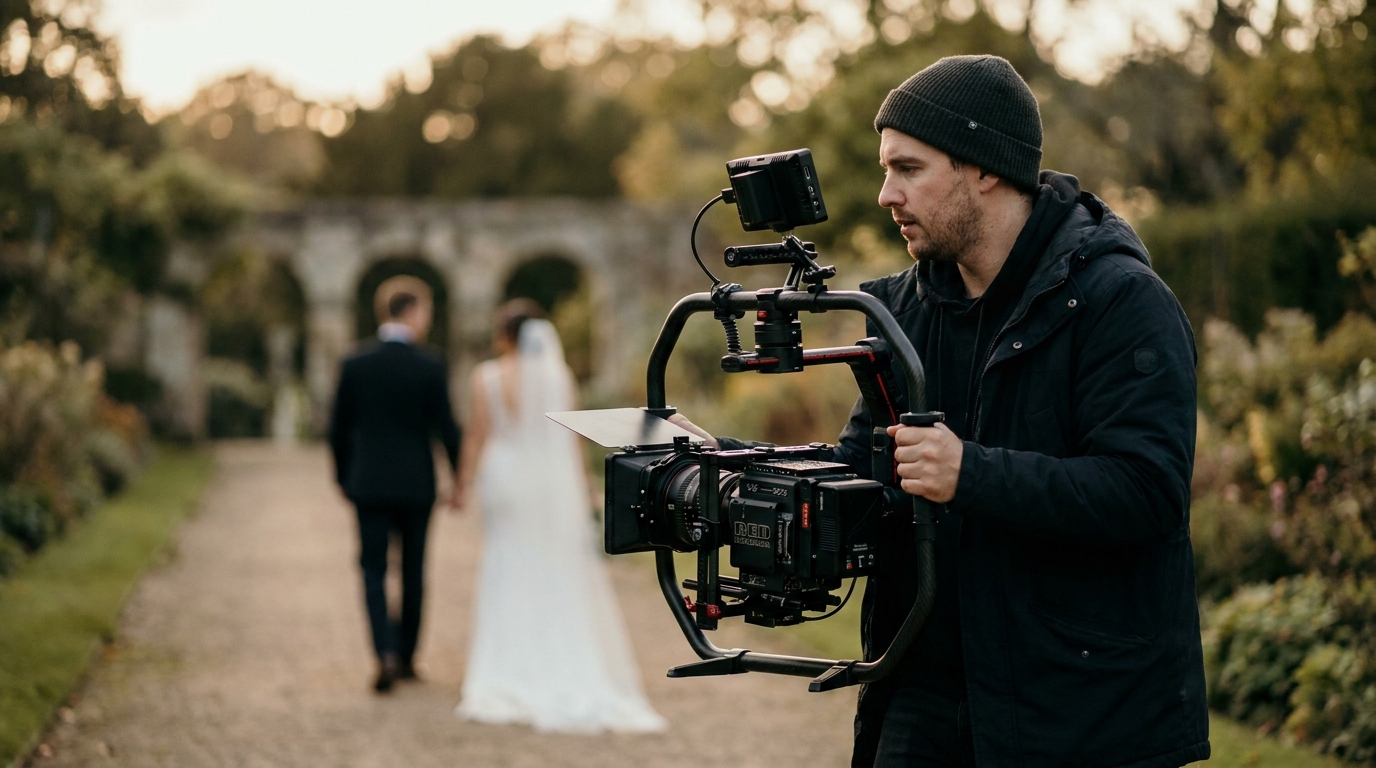
Shaky footage is one of the most common wedding video problems, and until recently, it was one of the hardest to fix. Traditional stabilization tools either cropped your video aggressively (losing half the frame) or produced weird warping artifacts that looked worse than the original shake.
AI-powered stabilization has changed everything. Modern tools can analyze camera movement, predict intentional pans versus unintentional shake, and smooth out footage while preserving the original frame and natural motion. Here's how to use them.
Why Wedding Footage Gets Shaky
Understanding the cause helps you choose the right fix.
Common Causes of Shaky Wedding Video
- Handheld shooting without stabilization— the most common cause, especially with smartphones or consumer cameras
- Inadequate gimbal or stabilizer— cheap gimbals can introduce their own jitter
- Walking while filming— following the couple down the aisle, moving through the reception
- Low light conditions— cameras struggle in dimly lit venues, and slower shutter speeds amplify shake
- Zoom lens at full extension— telephoto lenses magnify every tremor
- Excitement and emotion— even professional videographers get shaky during emotional moments
The severity ranges from barely noticeable micro-jitter to extreme wobble that makes footage unwatchable. The good news: AI stabilization can fix most of it.
How AI Video Stabilization Works
Traditional stabilization works by analyzing frame-to-frame movement and applying counter-transformations — essentially shifting each frame to compensate for camera shake. The problem: this requires cropping the frame to create a buffer zone for the corrections, and it can't distinguish between intentional camera movement (a slow pan) and unintentional shake.
AI stabilization is fundamentally different.
The AI Approach
Adobe's technical documentation, modern stabilization can analyze entire clips rather than just adjacent frames. The system:
- Analyzes the entire clip— not just adjacent frames, but the trajectory of the camera over time
- Distinguishes intentional from unintentional movement— a slow pan is preserved; a hand tremor is removed
- Predicts missing frame edges— instead of cropping, AI can generate the pixels that would exist if the camera had been stable, using contextual information from surrounding frames
- Preserves natural motion— subjects still move naturally; only the camera shake is removed
The result is footage that looks like it was shot on a professional stabilizer, even if the original was handheld and shaky.
AI vs. Traditional Stabilization
| Feature | Traditional | AI-Powered | |---------|------------|------------| | Frame cropping | 10-30% crop required | Minimal or no crop | | Intentional pan handling | Often treated as shake | Preserved naturally | | Warping artifacts | Common with extreme shake | Rare | | Edge reconstruction | Not possible | AI generates missing pixels | | Processing speed | Fast | Moderate (GPU recommended) | | Quality | Good for mild shake | Excellent for severe shake |
Step-by-Step: Fixing Shaky Wedding Video
Here's exactly how to stabilize your shaky wedding footage.
Step 1: Assess the Damage
Before applying stabilization, review your footage and categorize the shake:
- Mild jitter— subtle hand tremor, barely noticeable at full speed. Easy fix.
- Moderate shake— visible wobble during walking shots or handheld filming. Moderate fix.
- Severe shake— extreme movement, rolling shutter artifacts, nearly unwatchable. Harder fix, may require multiple passes.
- Mixed footage— some clips are stable, others aren't. Fix each clip individually.
Step 2: Choose Your Tool
Several AI stabilization tools are available, each with different strengths:
Free options:
- DaVinci Resolve— professional video editor with built-in stabilization (the "Stabilizer" tool uses advanced algorithms)
- Warp Stabilizer in Adobe After Effects— industry standard (requires Adobe subscription)
- Google Photos— basic stabilization for short clips, surprisingly effective
Paid options:
- Topaz Video AI— best overall AI enhancement and stabilization ($299 one-time)
- Adobe Premiere Pro— Warp Stabilizer with advanced settings
- Final Cut Pro— stabilization built into the editing suite
Professional services:
- AI enhancement service— we handle stabilization, color correction, and enhancement as a complete package
Step 3: Apply Stabilization
Using DaVinci Resolve (free) as an example:
- Import your shaky footage into the timeline
- Select the clip and open the Inspector panel
- Scroll to the "Stabilization" section
- Choose your method:
- Perspective— best for general shake, analyzes position, rotation, and zoom
- Similarity— good for mild shake, faster processing
- Translation— simplest, only corrects horizontal and vertical movement
- Set the crop ratio (lower = less cropping, but may leave edges)
- Click "Stabilize" and wait for analysis to complete
- Review the result and adjust settings if needed
For severe shake, you may need to apply stabilization in multiple passes with moderate settings rather than one aggressive pass.
Step 4: Fine-Tune the Results
After stabilization, check for:
- Cropped edges— if the stabilization cropped too much, reduce the correction strength
- Warping— if edges of the frame look wavy, switch to a less aggressive stabilization method
- Motion judder— if the stabilized footage looks unnaturally smooth, add back a small amount of natural camera movement
- Audio sync— stabilization shouldn't affect audio, but verify sync is maintained
Step 5: Export and Compare
Advanced Techniques for Severe Shake
Some footage is so shaky that standard stabilization can't fully fix it. Here are advanced approaches.
Multi-Pass Stabilization
Apply stabilization in stages. First pass: correct the major shake. Second pass: smooth out the remaining jitter. Third pass: fine-tune any lingering movement. Each pass uses gentler settings than you'd use for a single-pass approach.
Speed Ramping
slow motion enhancement, this technique produces surprisingly cinematic results.
Selective Stabilization
If only portions of a clip are shaky, don't stabilize the entire clip. Use keyframes to apply stabilization only where needed. This preserves the natural feel of stable portions while fixing the shaky sections.
Frame Interpolation
For footage with dropped frames or stuttering motion (common in old camcorder footage), AI frame interpolation can generate intermediate frames to create smooth motion. Tools like Topaz Video AI and RIFE can interpolate up to 60fps or even 240fps from standard 30fps footage.
Preventing Shake in Future Videos
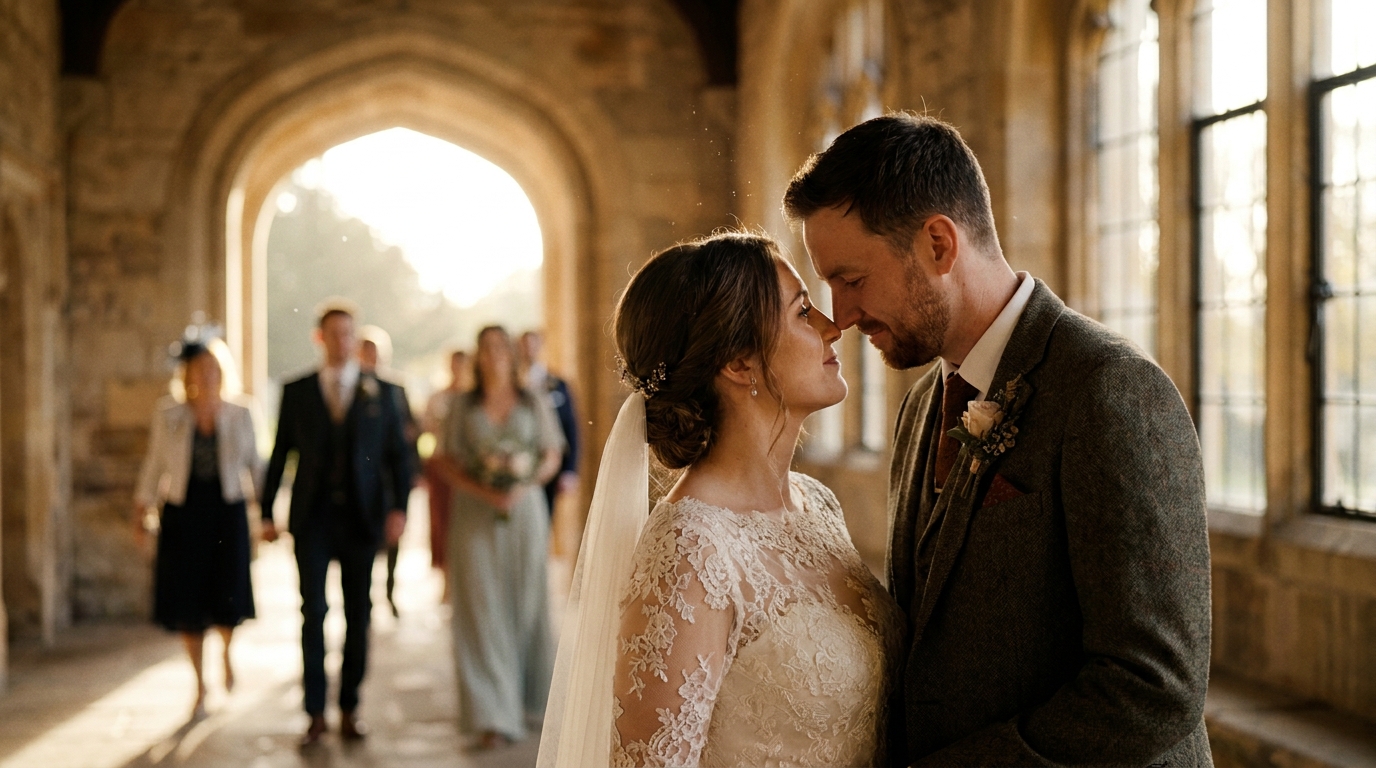
If you're still planning your wedding or have upcoming events, prevention is better than cure.
Equipment Recommendations
- Smartphone gimbal($80-150) — transforms shaky phone footage into smooth, professional-looking video
- Camera with in-body stabilization (IBIS)— most modern mirrorless cameras include this feature
- Monopod($30-80) — lightweight, portable, and significantly reduces shake
- Tripod for ceremony— lock off the ceremony camera on a tripod for rock-steady footage
Shooting Techniques
- Bend your kneeswhen walking — this absorbs bounce
- Use both handsand tuck your elbows against your body
- Lean against walls or pillarsfor support during long shots
- Breathe steadily— holding your breath causes tension and shake
- Shoot wider than you think you need— gives stabilization software more frame to work with
choosing a wedding videographer.
When to Call in Professionals
DIY stabilization works for most footage, but some situations warrant professional help:
- Irreplaceable footagethat can't be re-shot (the ceremony, a loved one's speech)
- Severely degraded footagethat needs stabilization plus color correction, noise reduction, and audio repair
- Large volumes of footage— stabilizing 50+ clips manually is tedious and time-consuming
- Complex edits— when stabilization needs to integrate with transitions, effects, and color grading
video enhancement service. We combine AI stabilization with color correction, noise reduction, and audio enhancement to transform your entire wedding video — not just fix individual clips.
Frequently Asked Questions
Can you fix extremely shaky wedding video footage?
Yes, AI stabilization can fix most shaky footage, including severe shake. The degree of improvement depends on the severity — mild jitter can be completely eliminated, while extreme shake can be significantly reduced but may leave some residual movement. Multi-pass stabilization and professional tools produce the best results for severely shaky footage.
Will stabilization change the quality of my video?
Modern AI stabilization preserves or even improves video quality. Unlike older stabilization methods that aggressively cropped and zoomed (reducing resolution), AI tools can reconstruct frame edges using contextual information. The final result often looks better than the original, especially when combined with color correction and noise reduction.
How long does it take to stabilize a wedding video?
Processing time depends on clip length, shake severity, and your hardware. A single 5-minute clip might take 5-15 minutes on a modern computer with GPU acceleration. A full wedding video (2-4 hours of footage) could take several hours. Professional services typically deliver stabilized videos within 3-5 business days.
Can I stabilize video on my phone?
Yes. Google Photos includes a basic stabilization feature that works surprisingly well for short clips. For more control, apps like CapCut and InShot offer stabilization tools. However, for professional-quality results on full wedding videos, desktop software or a professional service produces significantly better outcomes.
Is it better to stabilize during editing or when shooting?
Prevention is always better. Use a gimbal, tripod, or camera with in-body stabilization when shooting. However, AI post-production stabilization has advanced to the point where even severely shaky footage can be salvaged. If stabilization during shooting wasn't possible, AI post-processing is your best option.
Don't Throw Away Shaky Footage
That shaky clip of your first dance? It's fixable. The wobbly walk down the aisle? Salvageable. The handheld reception footage that makes you motion-sick? AI can smooth it out.
Your wedding footage — shaky or not — contains irreplaceable moments. Don't let camera shake rob you of those memories.
AI enhancement servicecombines stabilization, color correction, slow motion, and noise reduction into a single, seamless process. Send us your shaky clips — we'll send back something beautiful.
Ready to Transform Your Wedding Memories?
Tell us about your project and we'll get back within 24 hours with a free quote.
Get a Free Quote →